Billit Integration
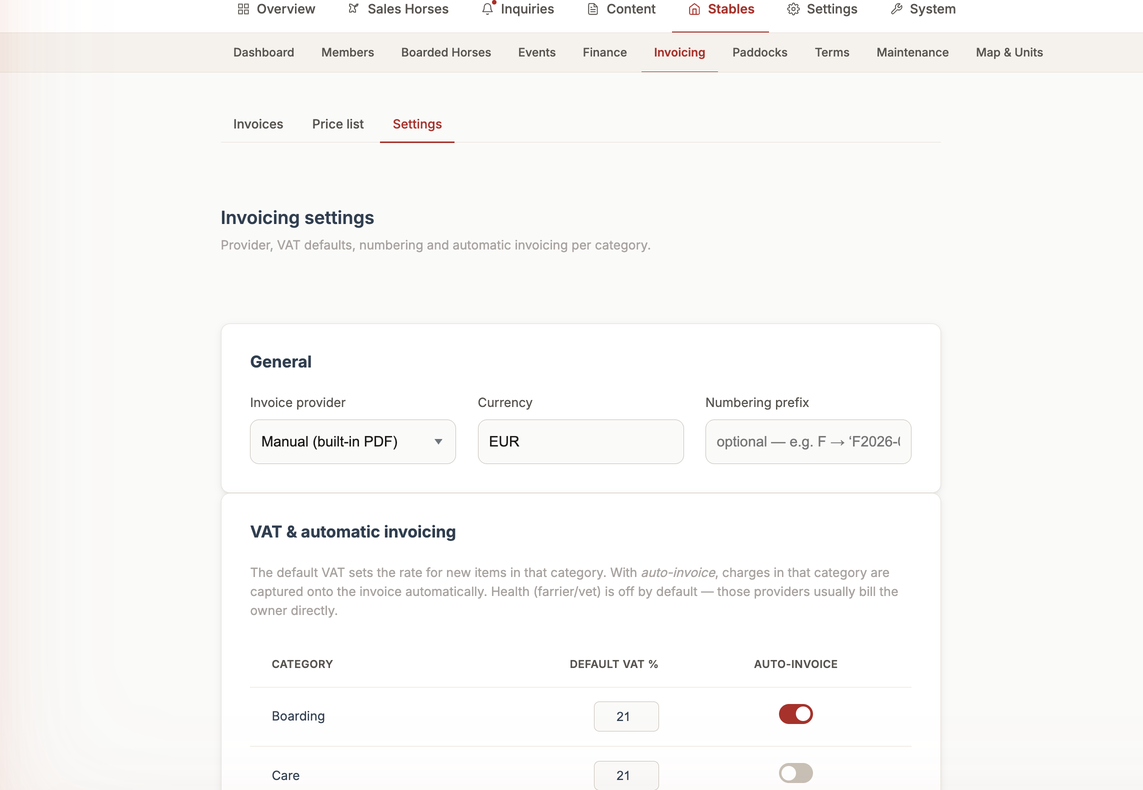
📍 Find this in the app: Admin Panel → Stables → Invoicing → Billing Settings (
/admin/stables/billing/settings)
For most horse owners, the built-in PDF invoice (with a GiroCode QR code to scan-and-pay) is all you need. But if a client is a business - a riding school, a transport company, a trainer operating as a company - Belgian law increasingly requires you to send them a structured e-invoice instead of a plain PDF. Billit is the service that handles that for you: it transmits your invoices over the Peppol network and keeps your bookkeeping in sync.
1. Connecting Billit (Create)
Go to Invoicing → Settings → Billit connection and click Connect Billit.
- You'll be redirected to Billit to log in and authorize the connection - you never share your Billit password with this system.
- Once you approve, you're sent back to the Settings page and see a Connected badge.
- If something goes wrong (you cancel, or the link expires), you'll see an error banner and can simply try again.
Connecting Billit does not change anything for your regular (consumer) clients - they keep receiving the same PDF with the GiroCode QR code as always.
2. What Changes Once Connected (Update)
Connecting your account is not enough on its own - Billit only takes over invoicing once you also configure it:
- In Invoicing → Settings → General, set Consumer invoice provider to Billit and turn on E-invoicing for business customers (Peppol BIS 3.0).
- On each business member's profile, mark them as a Business and fill in their VAT number and business address.
From that point on, any invoice generated for a member marked as a business is sent through Billit as a Peppol e-invoice instead of a PDF. Regular consumer clients are unaffected - they always keep receiving the built-in PDF with the GiroCode QR code, no matter what's selected here.
3. Payment Status Sync (Read)
You don't need to manually check whether a Billit invoice has been paid:
- Billit notifies the system automatically whenever an invoice's status changes.
- As a safety net, the system also checks in with Billit once a day, so a missed notification never leaves an invoice stuck.
- When Billit reports a payment, the invoice is automatically marked Paid here. If a due date passes without payment, it's automatically marked Overdue.
Once an invoice reaches Paid, it's considered final - the sync will never overwrite that status again, even if something odd happens on Billit's side later.
4. Disconnecting (Delete)
Click Disconnect on the Settings page to unlink your Billit account at any time.
- Invoices already sent through Billit keep their history - nothing is deleted retroactively.
- Important: disconnecting does not automatically switch business customers back to plain PDF invoicing. If Consumer invoice provider is still set to Billit and e-invoicing is still on, the system will refuse to issue new business invoices (rather than silently sending an unofficial document) until you either reconnect Billit or switch the provider back to Manual / turn off e-invoicing in the General section above.