Dual Image & Text
📍 Find this in the app: Admin Panel → Content → Page Editor (
/admin/page-editor) — add a block and pick Dual Image & Text.
A photo-led section with a heading, a short text and an optional button. It gives a premium, magazine-like feel — use it to introduce your stable, a rider, or a special horse.
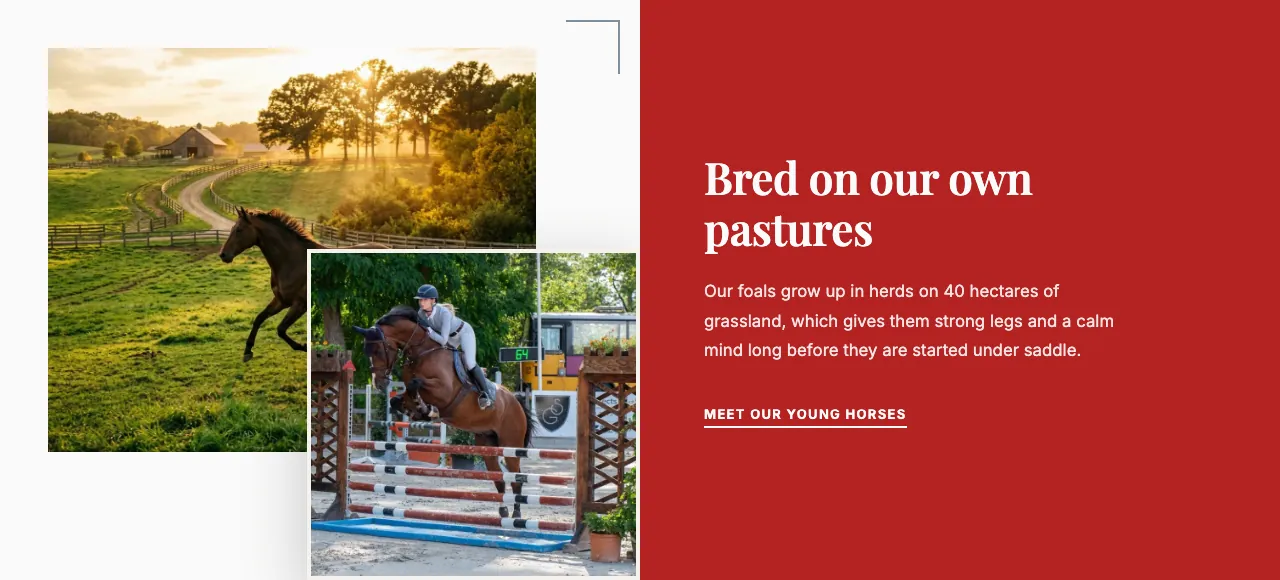
This is how the block looks on a stable website (example content):
Content
- Heading: The title.
- Text content: The text. You can make words bold or italic, add lists and add links.
Layout style
- Overlap (photo collage + text panel): A main photo with a second, smaller photo overlapping its corner, next to a coloured text panel.
- Editorial caption (oversized heading over photo): One large photo with a very large heading partly over it.
- Framed detail (inset panel on full-bleed photo): A photo across the full width, with the text in a framed panel on top.
- Overlay chip (caption card on full-bleed photo): A full-width photo with a small caption card on top, plus a second photo.
- Parallax reveal (photo scrolls behind an overlaid heading): A full-width photo that moves behind the heading as visitors scroll.
Settings
- Image position: Whether the photo sits on the Left or Right. Not shown for Parallax reveal, which is always centred.
- Main image and Main image description: The main photo and a short description of it for screen readers and Google Images.
- Image framing: Show top, Centre or Show bottom — which part of the photo stays in view when it's cropped.
- Secondary image (overlapping) and Secondary image description — Overlap and Overlay chip only: The second, smaller photo.
- Background colour — Overlap only: The colour of the text panel (Main colour, Light main colour, Dark main colour, Accent colour, Light accent colour, Dark accent colour, White or Dark).
- Show call to action button, Call to action text, Call to action link: An optional button below the text.