Text Section
📍 Find this in the app: Admin Panel → Content → Page Editor (
/admin/page-editor) — add a block and pick Text Section.
A heading with one or two paragraphs of text, optionally with a photo beside it or behind it. Use it for an introduction, an "About us" section, or to explain a service.
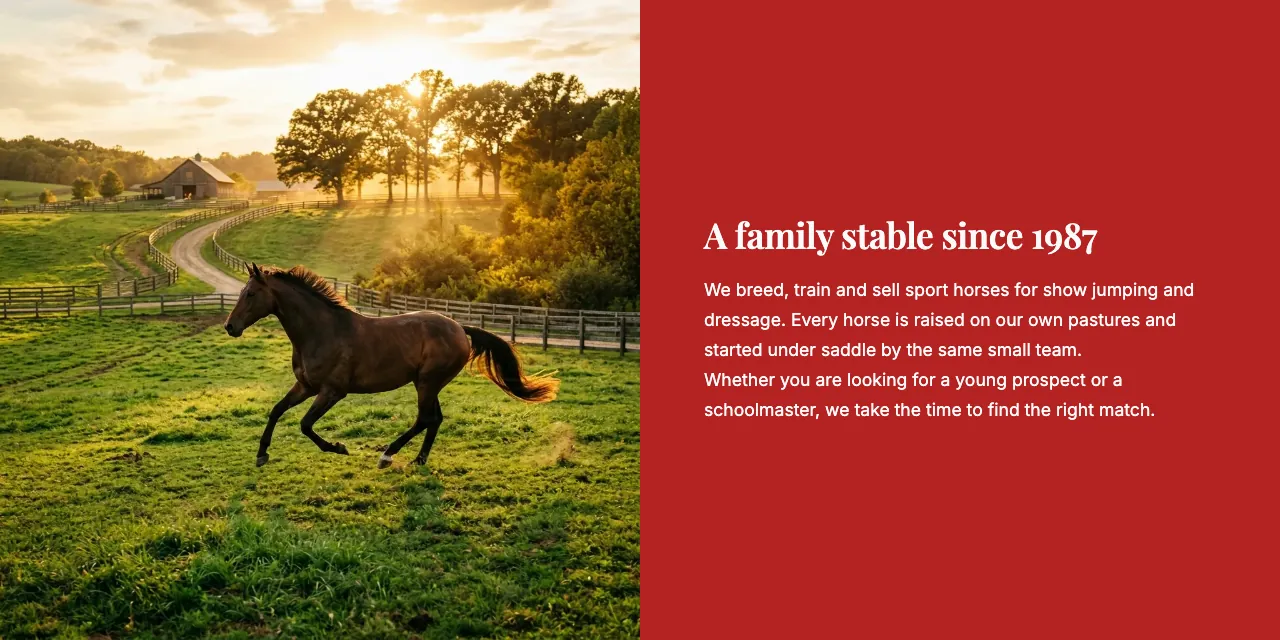
This is how the block looks on a stable website (example content):
Content
- Heading: The title of the section.
- Text content: The main text. You can make words bold or italic, add lists and add links.
- Additional text: An optional second paragraph, shown below the first.
Layout style
- Standard: Just text, on the page's own background. You can add a small photo next to it with Show image.
- Image on the left / Image on the right: A photo on one side and the text on a coloured panel on the other.
- Image as background: The text sits on top of a full-width photo, which is darkened so the text stays readable.
- Colour panel on the left / Colour panel on the right: A solid block of colour holding the text, directly next to a photo that runs to the edge of the screen.
Settings
Which settings you see depends on the layout:
- Text alignment — Standard only: Left, Centre or Right.
- Content width — Standard only: How wide the text may run: Narrow (easiest to read), Medium, Wide or Full width.
- Show image — Standard only: Adds a photo next to the text. When it's on, you also get Image position (Left or Right), Image, Image description and Image framing.
- Background colour — Image on the left/right and Colour panel layouts: The colour of the text panel. You can pick Main colour, Light main colour, Dark main colour, Accent colour, Light accent colour, Dark accent colour, White or Dark — these follow the colours set under Settings → Theme.
- Image — all layouts with a photo: Upload the photo.
- Image description: A short description of the photo, for visitors using screen readers and for Google Images.
- Image framing: Show top, Centre or Show bottom — which part of the photo stays in view when it's cropped.
- Background darkness (0–100) — Image as background only: How dark the photo becomes behind the text. A higher number means darker.