Slideshow
📍 Find this in the app: Admin Panel → Content → Page Editor (
/admin/page-editor) — add a block and pick Slideshow under Media.
A set of rotating slides. The current slide glides out to the left while the next one slides in from the right, and the text follows its photo a moment later. The Slideshow is available on every plan and works well as the first block on a page, in place of a hero banner.
This is how the block looks on a stable website (example content):
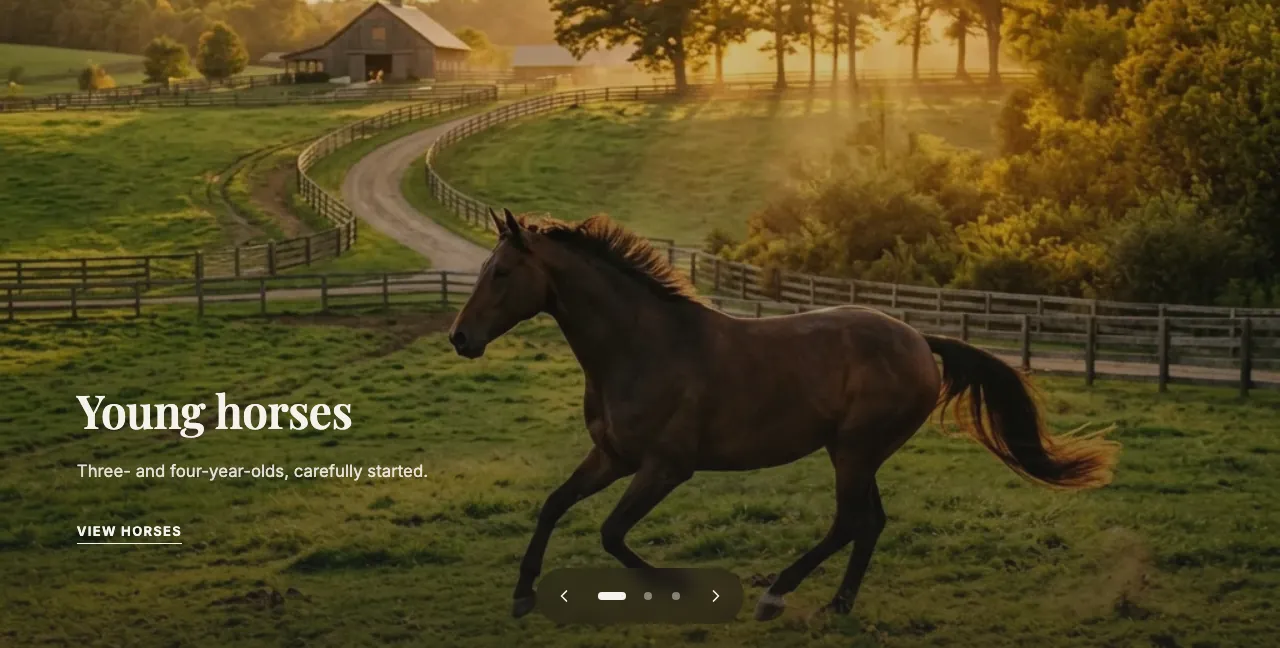
Slides
Add up to 8 slides with Add slide. Each slide has:
- Heading: The title of the slide.
- Text content: A short paragraph. Line breaks you type are kept.
- Main image: The main photo, uploaded or pasted as a link, plus an image description for visitors using screen readers and for Google Images.
- Inset image (optional): A smaller photo that overlaps the corner of the main photo. It is only shown with the Image on the left and Image on the right layouts.
- Call to action text & link (optional): The button only appears when both are filled in.
Use the up and down arrows to change the order of the slides, and the bin icon to remove one. A slide with neither a photo nor a heading is skipped on the website.
Settings
- Layout style:
- Image with text overlay: A full-width photo with the text on top of it. Background darkness controls how dark the photo becomes behind the text, so the text stays readable.
- Image on the left / Image on the right: A main photo with a smaller overlapping inset photo, next to a coloured text panel. This is the same look as the Dual Image & Text block. Background colour picks the colour of the text panel. On phones, the photos are shown above the text.
- Image framing: Choose whether the top, centre, or bottom of each photo stays in view when it is cropped.
- Advance slides automatically: On by default. The slideshow moves to the next slide by itself.
- Seconds per slide: How long each slide stays up while advancing automatically (4, 6, 8, or 10 seconds).
What visitors see
- Visitors can use the arrows, click the dots, swipe on a phone or tablet, or use the left and right arrow keys.
- While the slideshow advances automatically, the active dot fills up to show when the next slide is coming, and a pause / play button is always shown.
- Automatic advancing pauses while a visitor points at the slideshow with their mouse, while they use the keyboard inside it, and while it is scrolled out of view.
- Visitors who turned on reduce motion in their device settings get a gentle fade between slides instead, and the slideshow does not advance by itself.
tip
- 3 to 5 slides is usually the sweet spot — visitors rarely wait for more.
- For the Image with text overlay layout, use landscape photos that are at least 1920 pixels wide, because they are shown across the full width of the screen.
- Always fill in the image descriptions. They help visitors using screen readers and help your photos show up in Google Images.