Process Steps
📍 Find this in the app: Admin Panel → Content → Page Editor (
/admin/page-editor) — add a block and pick Process Steps.
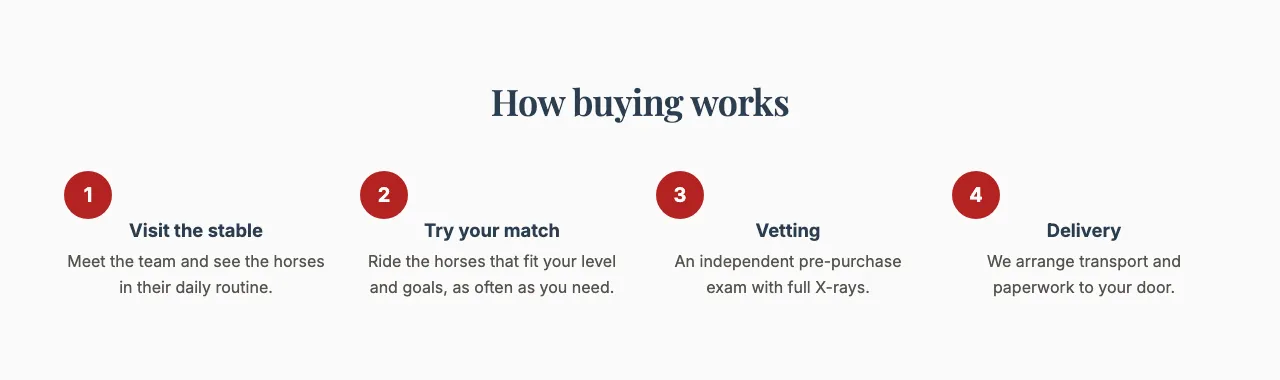
Explains a process in numbered steps, for example "How buying a horse works" or "Your first week at our stable". Visitors see at a glance what happens and in what order.
This is how the block looks on a stable website (example content):
Content
- Heading: The title above the steps.
- Steps: Click Add step for each step, and use the bin icon to remove one. Each step has a Title and a Description.
Settings
- Layout style: Side by side (the steps sit next to each other in a row) or Stacked (the steps sit below each other).
- Step style:
- Numbered circles: Each step starts with its number in a circle.
- Timeline: The steps are joined by a line, like a timeline.
- Icons: Each step starts with an icon instead of a number. Only steps from your starting template have an icon; steps you add yourself fall back to their number.
- Big index numeral: A very large number next to each step, magazine-style.
- Show step numbers: Turn this off to hide the numbers (or icons) completely.