Video
📍 Find this in the app: Admin Panel → Content → Page Editor (
/admin/page-editor) — add a block and pick Video.
Shows a YouTube or Vimeo video on your page, for example a sales video or a stable tour.
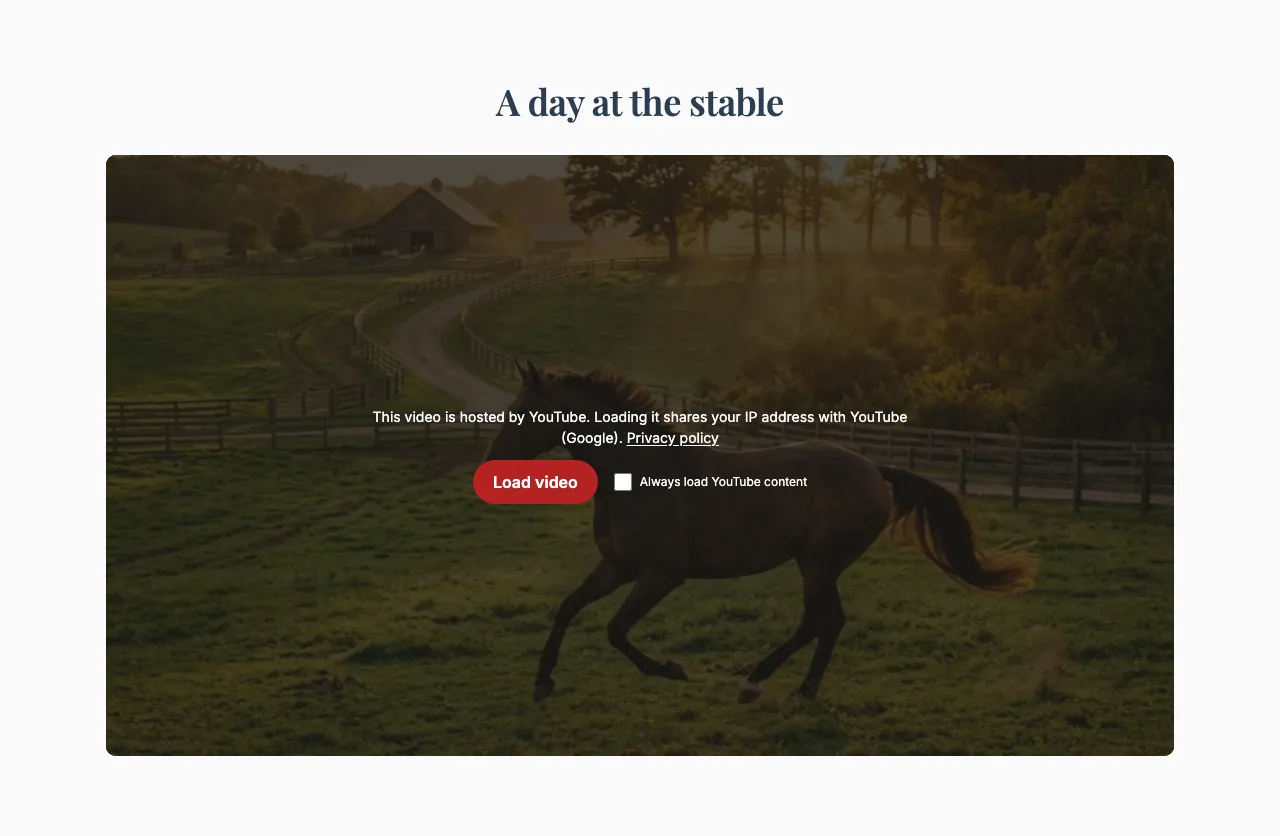
This is how the block looks on a stable website (example content):
Content
- Heading: An optional title above the video.
- Video URL: The normal link to the video on YouTube or Vimeo — just copy it from your browser's address bar.
Settings
- Video ratio: The shape of the player: Widescreen (16:9) for most videos, Standard (4:3) for older videos, or Square (1:1).
- Content width: How wide the video is: Narrow, Medium, Wide or Full width.
- Autoplay video (only on some older blocks): Starts the video automatically, but only for visitors who already chose to always load YouTube or Vimeo videos.
Privacy
YouTube and Vimeo collect data about visitors, so the video isn't loaded straight away. Visitors first see a short privacy notice and a Load video button. Only after they click it is the video loaded from YouTube or Vimeo. Visitors can choose to remember this, and from then on videos load straight away for them. This keeps your website in line with privacy law (GDPR).