Rich Text
📍 Find this in the app: Admin Panel → Content → Page Editor (
/admin/page-editor) — add a block and pick Rich Text.
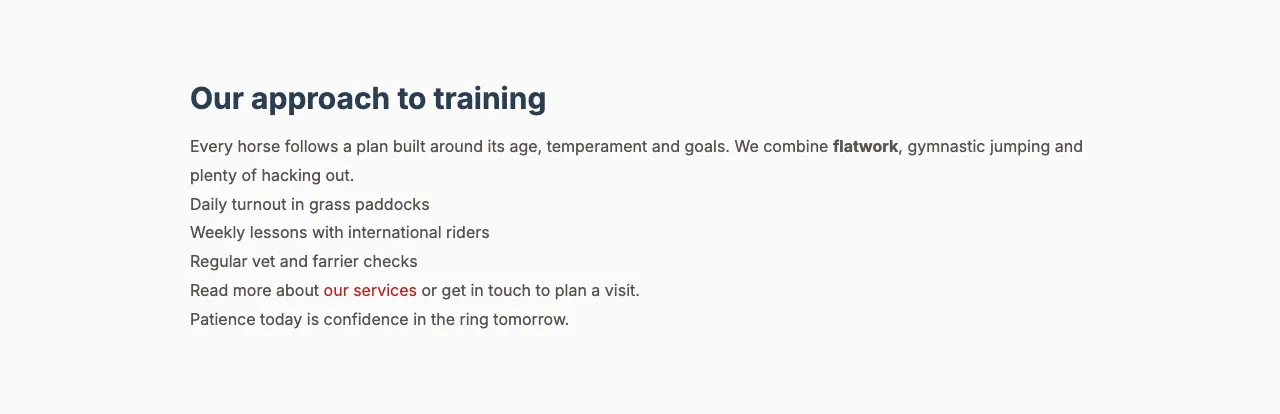
A free text area, like a small word processor. Use it for longer pieces of text such as your stable's story, rules, or terms — anything that doesn't need a photo.
This is how the block looks on a stable website (example content):
Content
- HTML content: The text itself. Use the toolbar to make text bold, italic or underlined, add numbered or bullet lists, add sub-headings and add links. You don't need to know HTML.
Settings
- Content width: How wide the text may run on a computer screen: Narrow, Medium, Wide or Full width. Narrow is the easiest to read for long texts.
- Display style:
- Default: Normal text.
- Statement (large centred display text): Large, centred text — good for one short, strong message.
- Drop cap (oversized initial letter): The first letter of the text is shown very large, like in a magazine.
- Two columns (newspaper flow): The text flows over two columns on wider screens.