Call to Action
📍 Find this in the app: Admin Panel → Content → Page Editor (
/admin/page-editor) — add a block and pick Call to Action.
A short, eye-catching banner that asks visitors to do one thing — book a lesson, get in touch, view your horses — with one or two buttons. Put it at the end of a page so visitors know what to do next.
This is how the block looks on a stable website (example content):
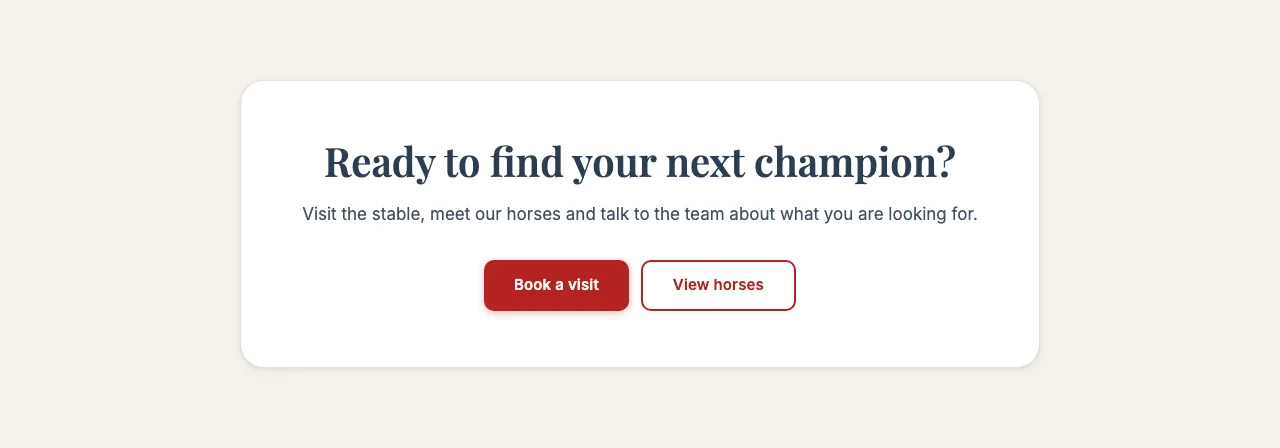
Content
- Heading: The main line, for example "Ready to meet your next horse?"
- Description: A short supporting sentence.
Settings
- Display style:
- Full banner: A coloured strip across the full width of the page.
- Centred card: A card in the middle of the page.
- Simple text: Just the text and buttons, without a coloured background.
- Gradient: A banner that blends your theme colours into each other.
- Image + colour panel: A photo on one side and a coloured panel with the text on the other.
- Button text and Button link: The main button, for example "Contact us" linking to
/contact. - Show second button, Second button text, Second button link: An optional second button.
- Image — Image + colour panel only: The photo beside the text.
- Image framing — Image + colour panel only: Show top, Centre or Show bottom — which part of the photo stays in view when it's cropped.